
Why tabs cost so much
Every open tab is a running web page: its scripts keep executing, its images and video buffers stay resident, and for security most browsers give each site its own process. A “quiet” background tab is rarely quiet. Mail clients poll, dashboards refresh, social feeds keep rendering. Thirty tabs is thirty live programs, and the browser’s own UI, GPU and network processes sit on top.
macOS copes by compressing memory and swapping to disk, which is why nothing crashes, but it’s also why everything gets slowly worse: beachballs, laggy tab switches, fans on a warm lap. The fix isn’t a bigger Mac. It’s not keeping thirty live programs running to preserve thirty reading positions.
Step 1: See what’s actually being used
Open Activity Monitor → Memory and sort by the Memory column. Your browser appears as many processes: the app itself plus one per tab or site. Chromium-based browsers also have a built-in task manager (Window → Task Manager in Chrome) that names each tab’s cost, which is useful for spotting the one page eating a gigabyte on its own.
Two things usually jump out: a handful of heavyweight tabs (web apps, anything with video), and a long tail of tabs costing 50–150 MB each that you kept “to read later.” Different fixes for each.
Step 2: What the built-in memory savers do (and don’t)
Per their own documentation, the mainstream browsers all ship some form of inactive-tab management:
- Chrome’s Memory Saver. Deactivates tabs you haven’t used for a while and reloads them when you return. It helps, but it’s per-tab, timer-driven, and Chrome decides which tabs sleep. A reloaded tab can also lose in-page state like a half-written form.
- Edge’s sleeping tabs. Same idea with a configurable timer and a visual “asleep” treatment.
- Firefox unloads tabs when the system runs low on memory (you can see and trigger this at
about:unloads), rather than on a schedule. - Safari exposes no user-facing tab-sleeping control; it leans on WebKit’s efficiency and macOS memory compression. Genuinely light per tab, but you get no lever to pull when it isn’t enough.
Step 3: Tab suspender extensions, a shrinking option
Extensions like OneTab (collapse tabs to a list of links) and Auto Tab Discard (suspend on a timer) pioneered this space, and OneTab’s approach (convert tabs to a list, reopen on demand) still works fine if you treat tabs as a to-do list. But suspender-style extensions work inside the extension sandbox, which limits how completely they can release memory, and Chrome’s Manifest V3 transition removed capabilities some of the older ones depended on. In 2026, the built-in mechanisms above generally do the suspension job better than an extension can.
Step 4: The structural fix, workspaces that hibernate
The deeper problem is that a flat tab strip makes every page pay rent forever. The structural fix is grouping tabs by context and only keeping the current context alive.
This is the approach I took with Sill, a free macOS browser I build, so read this section knowing that. In Sill, tabs live in workspaces: shopping, news, home admin, a project. Switch away from a workspace and the whole room hibernates: every tab releases its memory entirely, not frozen in the background but unloaded. Switch back and it wakes exactly where you left it, scroll position included. Only the workspace on screen (plus your favorites) is consuming page memory, no matter how many tabs the others hold.
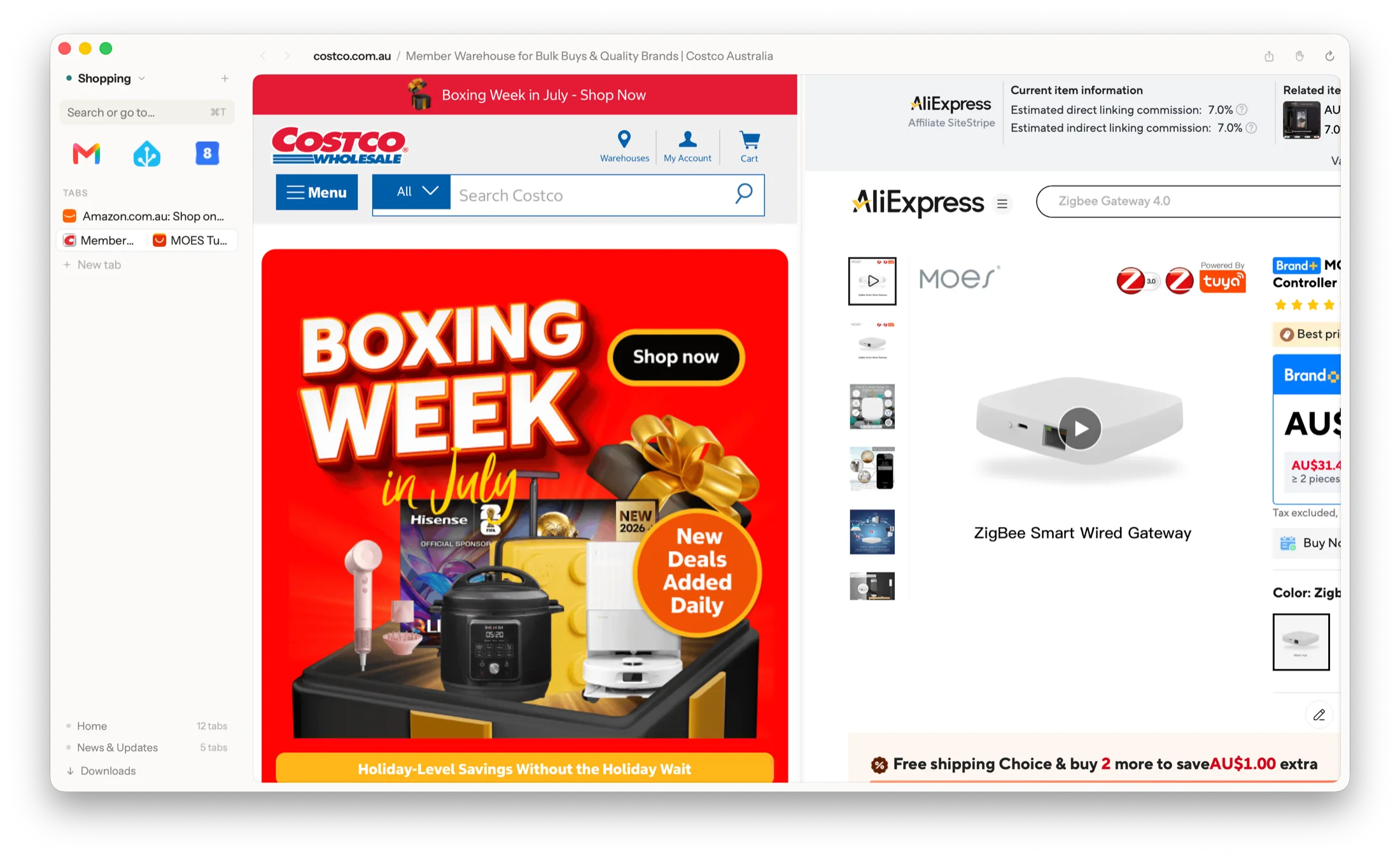
Mainstream browsers have partial versions of this. Safari’s Tab Groups and Chrome’s tab groups organize tabs, but organizing isn’t unloading; grouped tabs generally stay resident unless the memory saver separately decides to sleep them. The combination that actually fixes the Activity Monitor picture is grouping and hibernation together.
Step 5: Stop duplicating your daily sites
A surprising share of tab pileup is the same few sites opened again and again: mail in four tabs, the calendar in two. Whatever browser you use, promote those to pinned tabs or favorites so there’s exactly one loaded instance of each. In Sill, favorites work like the Dock: always loaded, one click from any workspace, and able to show a quiet unread count on the icon so you don’t even need to open mail to know.
Which fix should you reach for?
| Approach | Memory freed | Keeps your place? | Best for |
|---|---|---|---|
| Closing tabs | All of it | No | Tabs you were honestly done with |
| Built-in memory savers | Inactive tabs, browser’s choice | Mostly (state can be lost on reload) | Staying in your current browser |
| Suspender extensions | Partial | Varies | Legacy setups; list-style tab triage |
| Workspace hibernation (Sill) | Every non-active workspace, entirely | Yes, scroll position included | Many contexts open at once on a Mac |
In practice: turn on your browser’s memory saver today, and if your real problem is contexts (work, shopping, research piles that you’re not ready to close) try a workspace browser. Sill is free early access, macOS 14+, and nothing you do in it ever leaves your Mac.
Frequently asked questions
Why does my browser use so much memory on a Mac?
Every open tab is a running web page: scripts, images, video buffers, and often several background processes for isolation. Thirty tabs can easily mean thirty active pages plus the browser's own overhead, and modern sites keep working even when you're not looking at them.
Does closing tabs actually free memory?
Yes. Closing a tab ends its processes and releases the memory. The catch is that closing tabs loses your place, which is why most people don't do it. Tab suspension and workspace hibernation exist to free the memory without losing the page.
What's the difference between tab suspension and hibernation?
Suspension (Chrome's Memory Saver, Edge's sleeping tabs) freezes or discards individual inactive tabs, usually on a timer, and reloads them when clicked. Hibernation as Sill does it works at the workspace level: switch away and every tab in that workspace releases its memory at once, then the whole room wakes exactly where you left it, scroll position included.
Do tab suspender extensions still work?
Some do, but they operate within the browser's extension sandbox, which limits how completely they can release memory, and Chrome's move to Manifest V3 removed capabilities some older suspenders relied on. Built-in mechanisms generally free memory more reliably than an extension can.
How much memory does Sill's workspace hibernation save?
A hibernated workspace releases its tabs' memory entirely. The pages aren't frozen in the background, they're unloaded. Only the workspace you're looking at (plus your always-loaded favorites) is consuming page memory, so the saving scales with how many tabs live in your other workspaces.